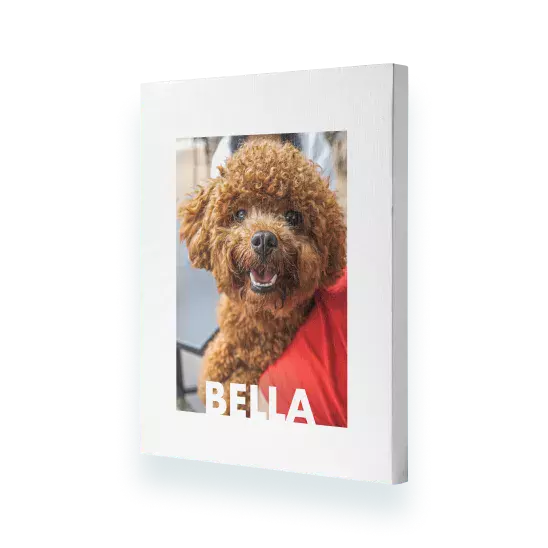
You can change the orientation of your photo canvas print once you are in the project builder. Simply click the ‘Orientation’ button, which is located on the right-hand side of the canvas print. We always recommend choosing your orientation before you start designing your photo canvas. If you switch orientation mid-design, your canvas printing design may alter.
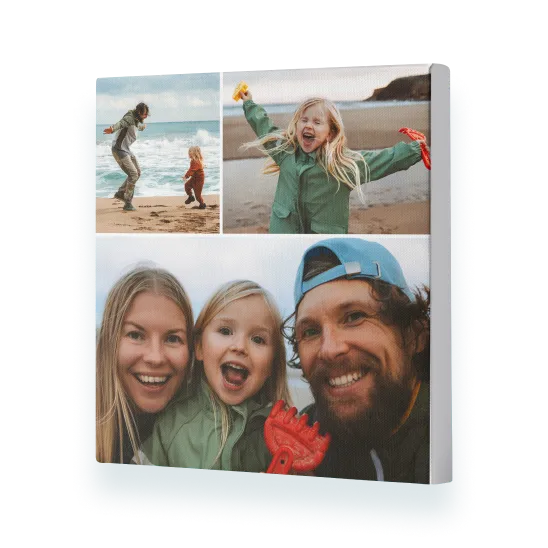
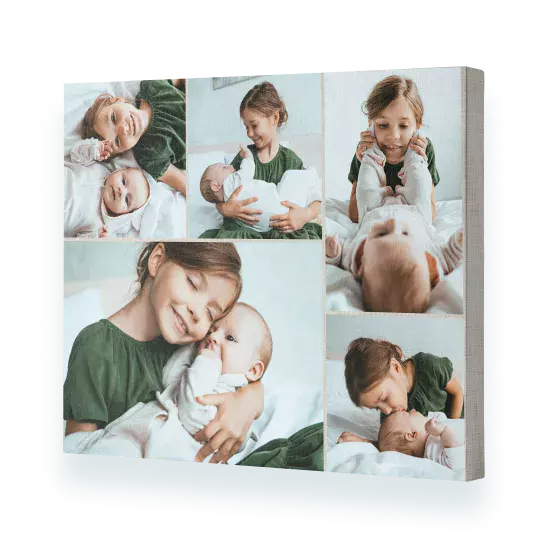
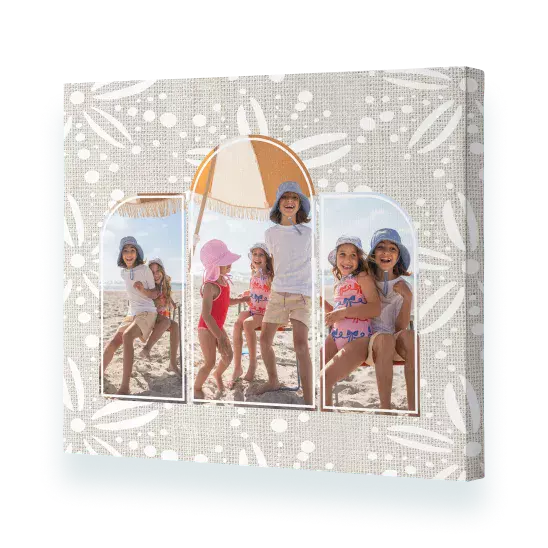
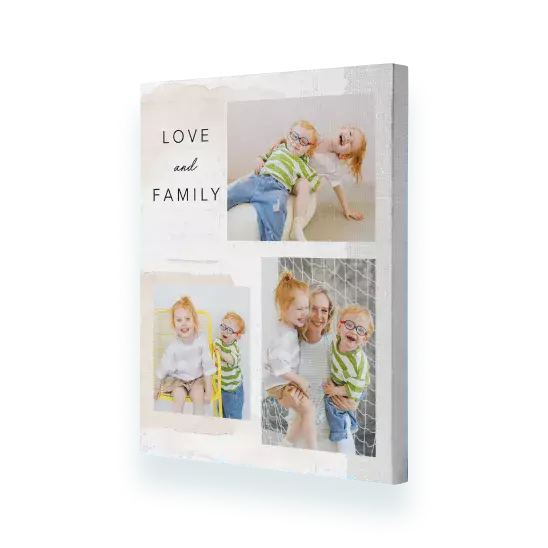
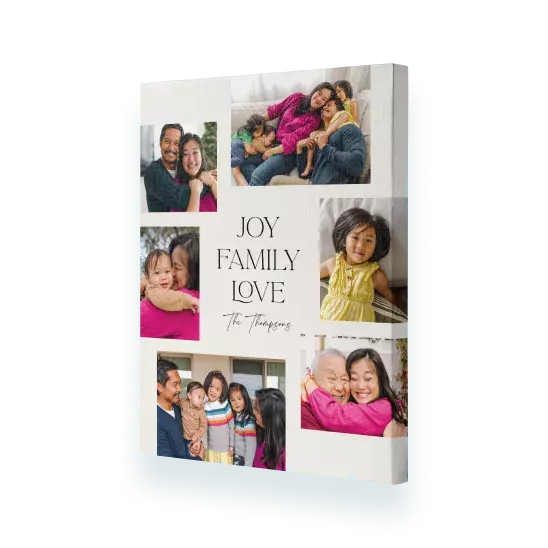
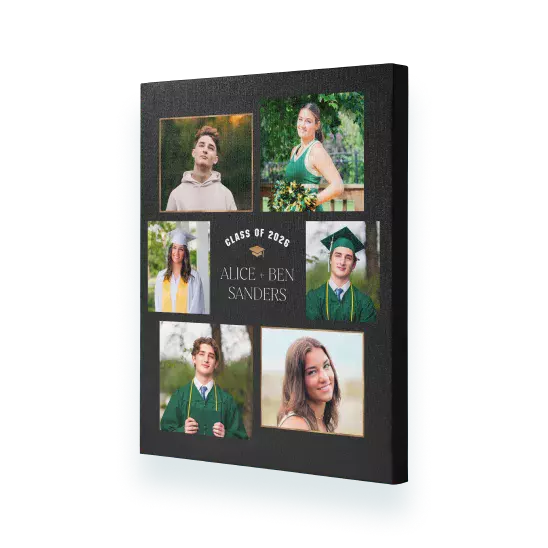
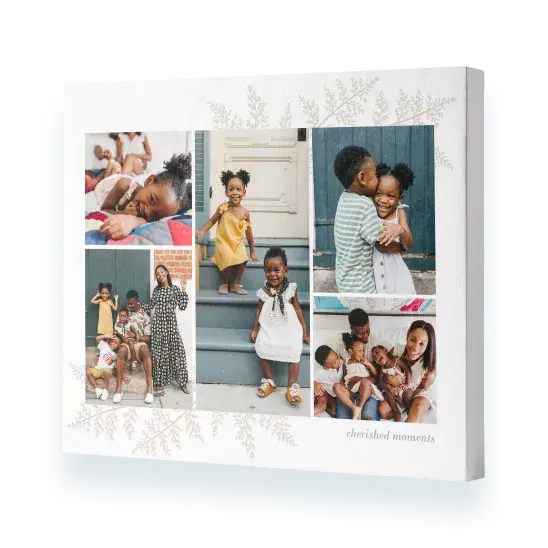
It's easy to create a collage canvas print. Simply select 'Collage' from the Canvas menu, choose a size and click 'Create Now'. Sign in and add photos. The photos will automatically be added to your canvas photo print. Click 'Shuffle' located next to your photo canvas in the builder to change the layout.
Alternatively, select 'Design Your Own' and create your own collage design by dragging and dropping photos from the photo well onto the canvas print, and using the ‘Shuffle’ button until you are happy with the layout.
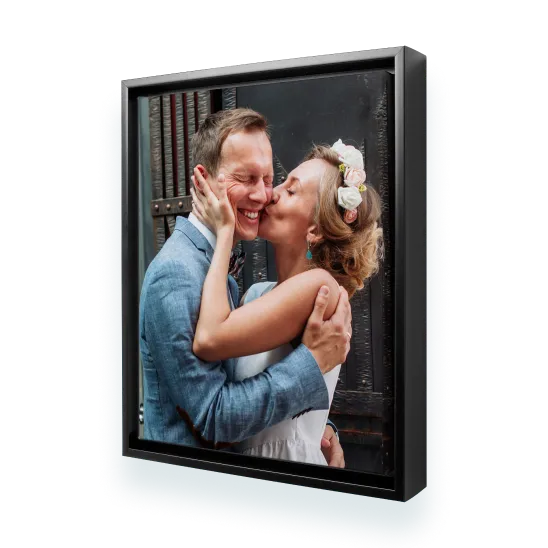
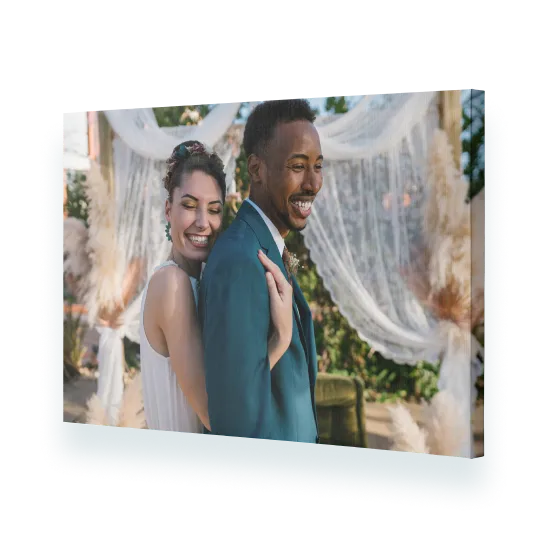
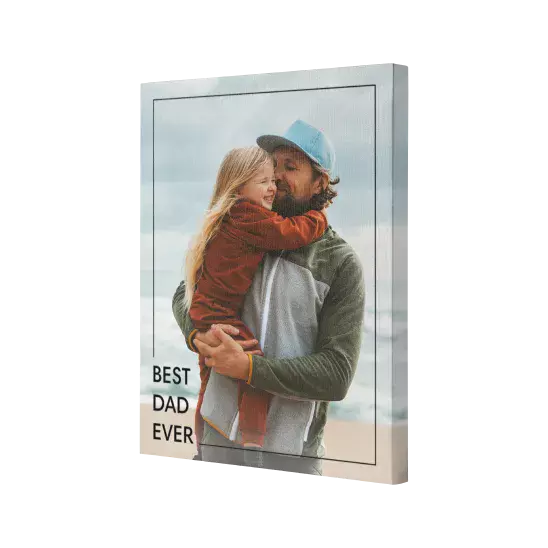
If you want to avoid your photo wrapping around the edge of the canvas print, then simply opt for a design that doesn't wrap the photo around the edge. You could also create a framed canvas print to prevent the image from wrapping around.
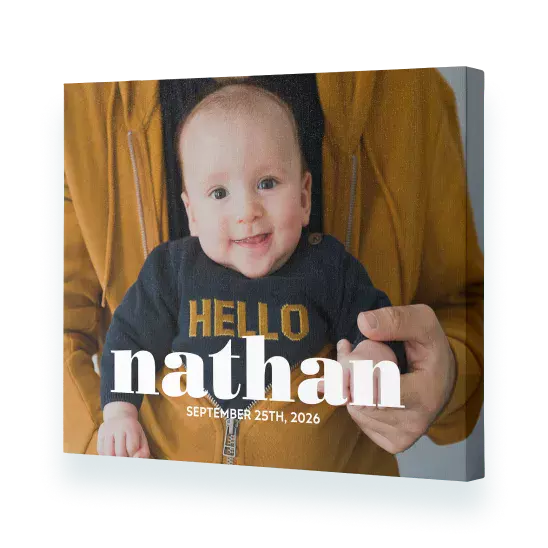
The easiest way to create a non-photo canvas print is to start with a single photo design, which you can find in ‘More Designs’ > ‘Photo Wrap’. Select a design. From there, you can remove the photo by clicking ‘Shuffle’ and then deleting the ‘Photo Here’ slot using the ‘bin’ icon.
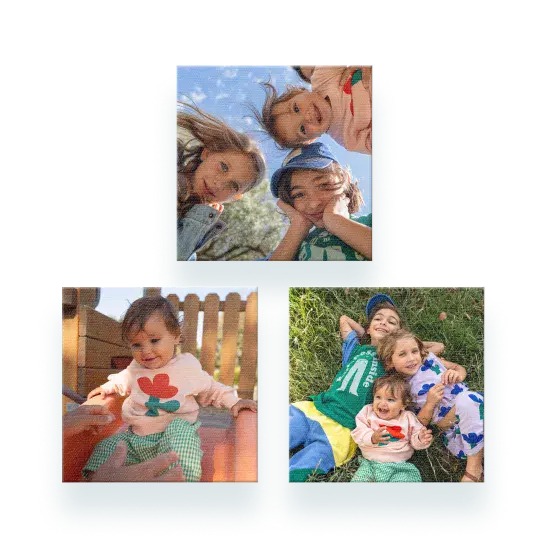
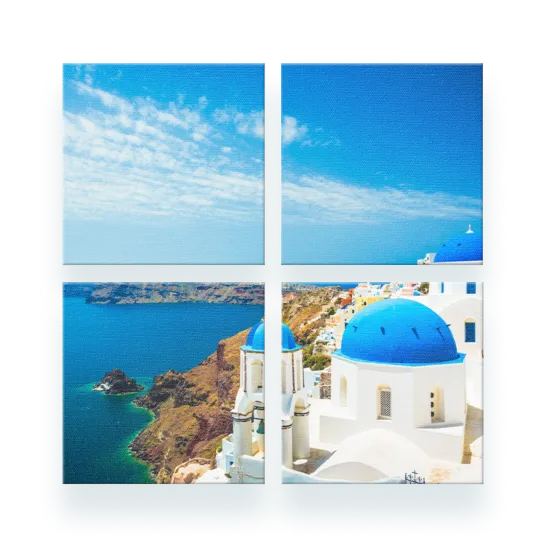
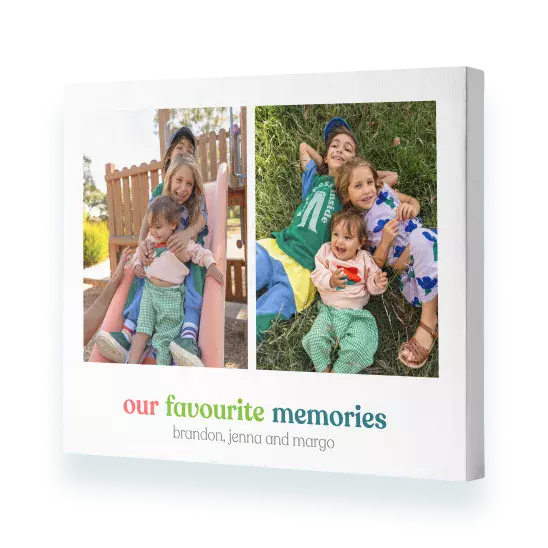
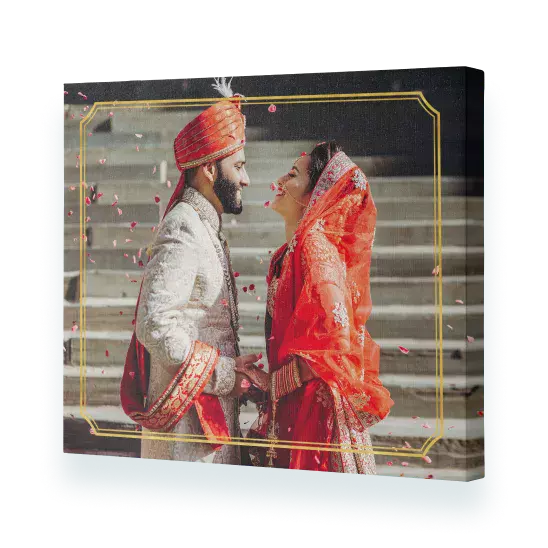
You can add as many photos as you like to your canvas picture print. We think the fewer photos you add, the better, especially on our smaller canvas picture prints. For the ideal balance, choose our pre-made designs for different occasions, including family canvases, wedding canvas designs to treasure special memories, or beautiful travel canvases. You could also choose our canvas sets to fill a wall with as many of your favourite photos as you’d like!