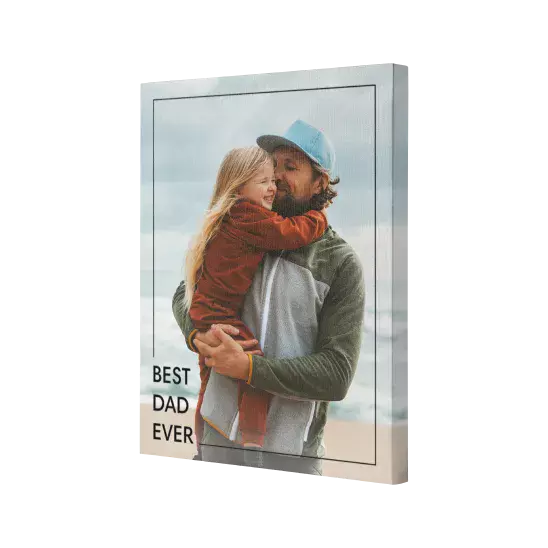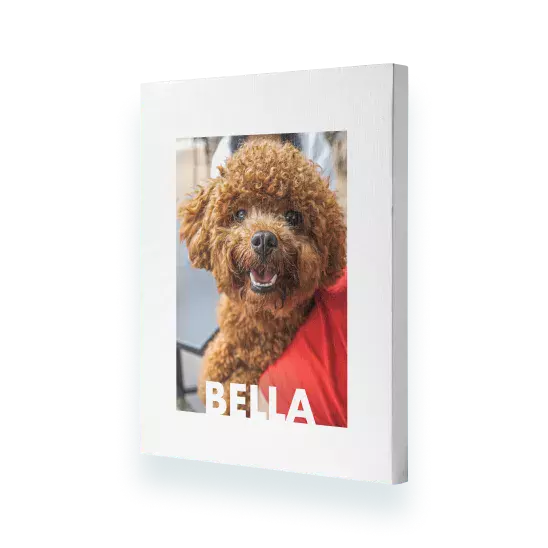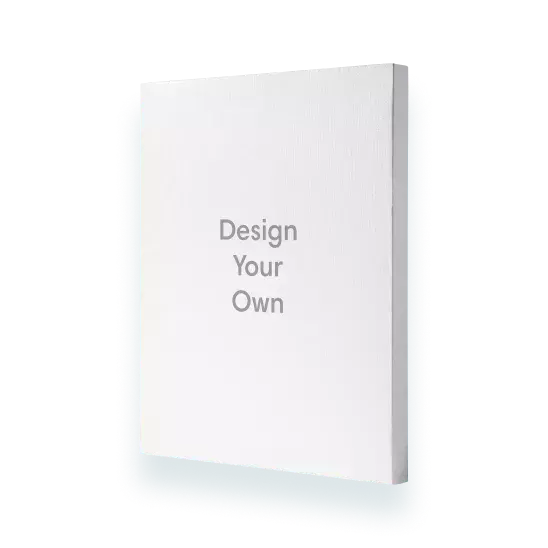
You can change the orientation of your canvas print once you are in the project builder. Simply click the ‘Orientation’ button which is located on the right-hand side of the canvas print. We would always recommend choosing your orientation before you start designing your photo canvas. If you switch orientation mid-design, your design may alter.
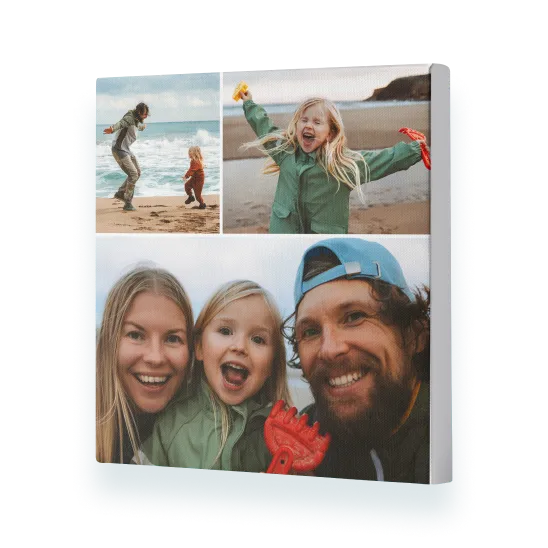
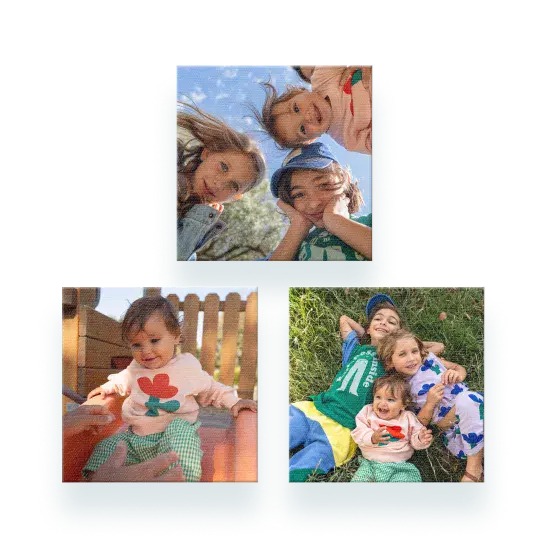
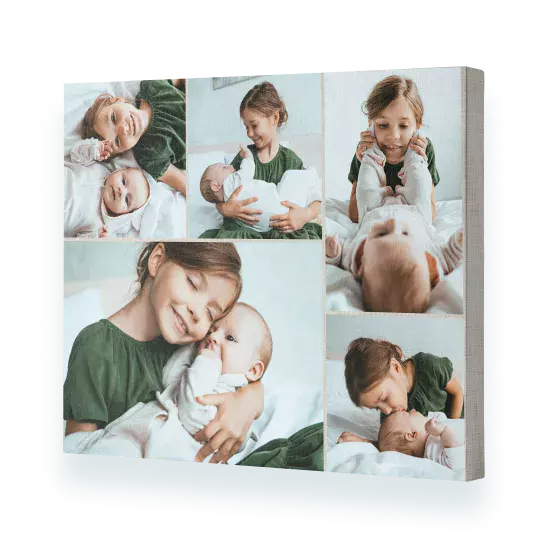
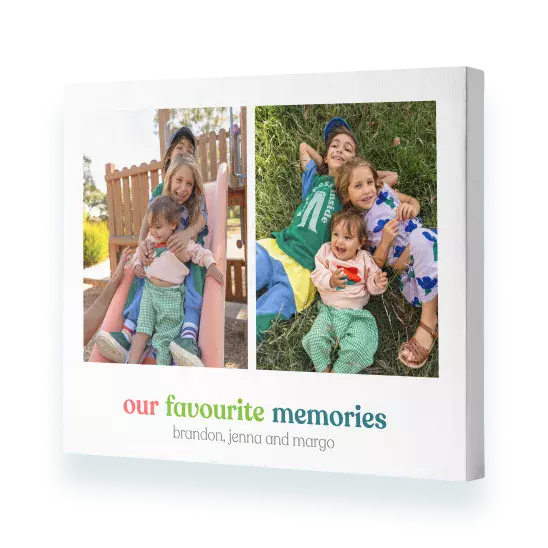
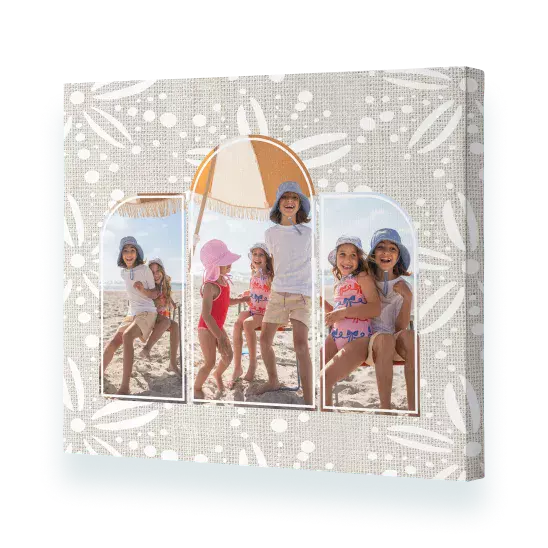
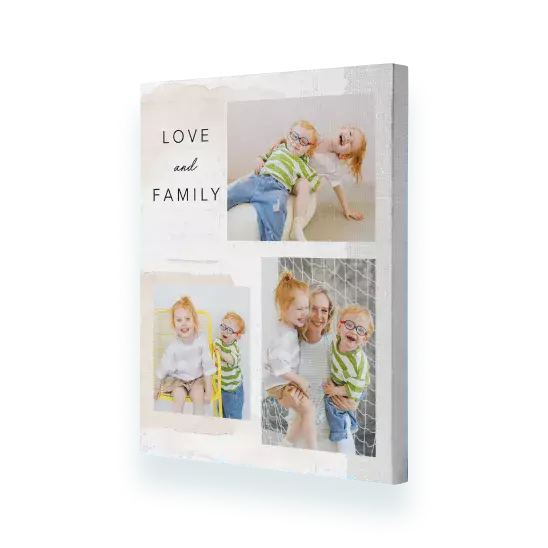
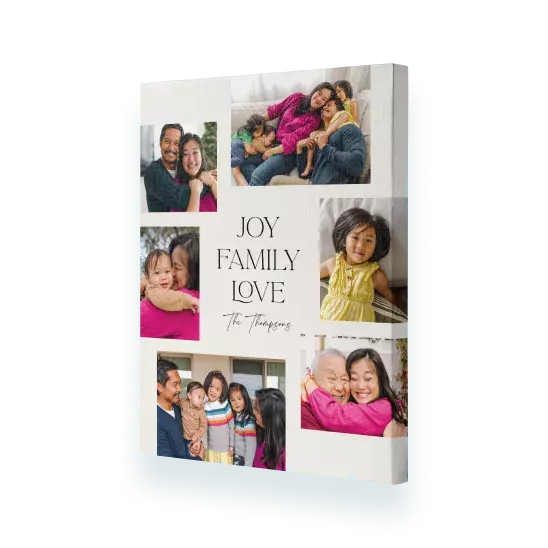
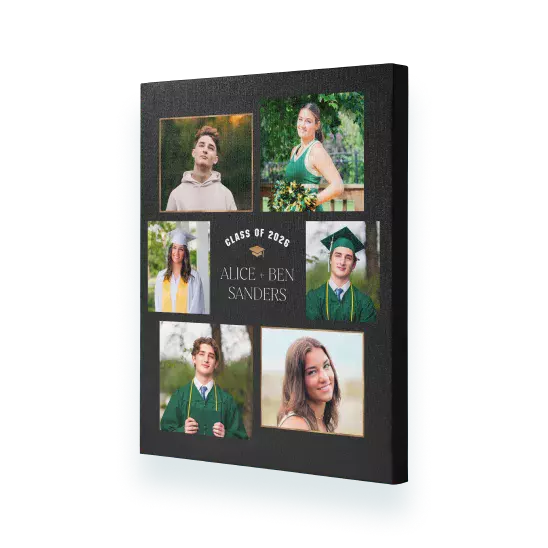
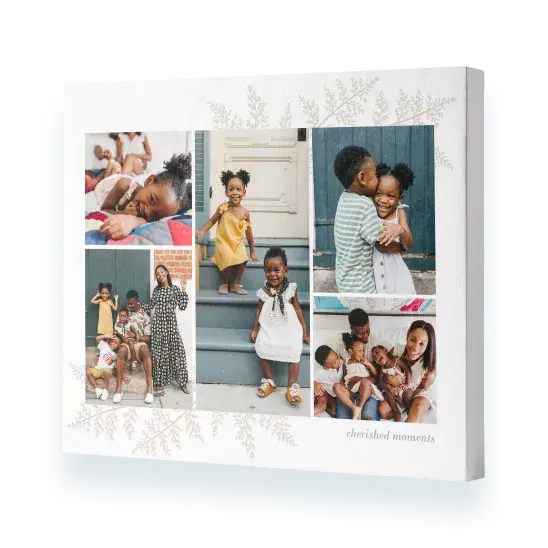
It's easy to create a collage canvas print. Simply select 'Collage' from the Canvas menu, choose a size and click 'Create Now'. Sign in and add photos. The photos will automatically be added to your canvas photo print. Click 'Shuffle' located next to your photo canvas in the builder to change the layout. Alternatively, select 'Design Your Own' and create your own collage design by dragging and dropping photos from the photo well onto the canvas print, and using the ‘Shuffle’ button until you are happy with the layout.
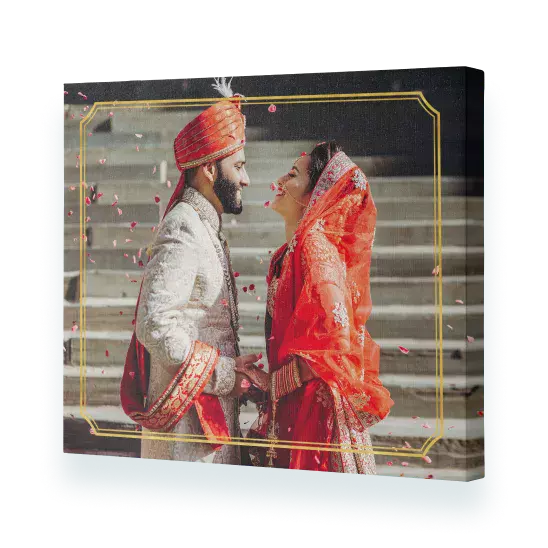
If you want to avoid your photo wrapping around the edge of the canvas print, then opt for a design that doesn't wrap the photo around the edge. Alternatively, select ‘Colour Wrap’ from the 'More Designs' from the left-hand menu in the builder.
The easiest way to create a non-photo canvas print is to start with a single photo design, which you can find in ‘More Designs’ > ‘Photo Wrap’. Select a design. From there you can remove the photo by clicking ‘Shuffle’ and then deleting the ‘Photo Here’ slot using the ‘bin’ icon.
You can add as many photos as you like to your canvas picture print, however we think the fewer photos you add the better, especially on our smaller canvas picture prints.
Yes, Hanging kits are included with all our small canvas photo print. Our large canvas print sizes and Premium canvas ranges are delivered ready to hang, right out of the box.